

How to Change Hair Color in a Photo with AI
Learn how to preview a new hair color with AI while keeping the face, hairstyle, texture, and lighting natural.
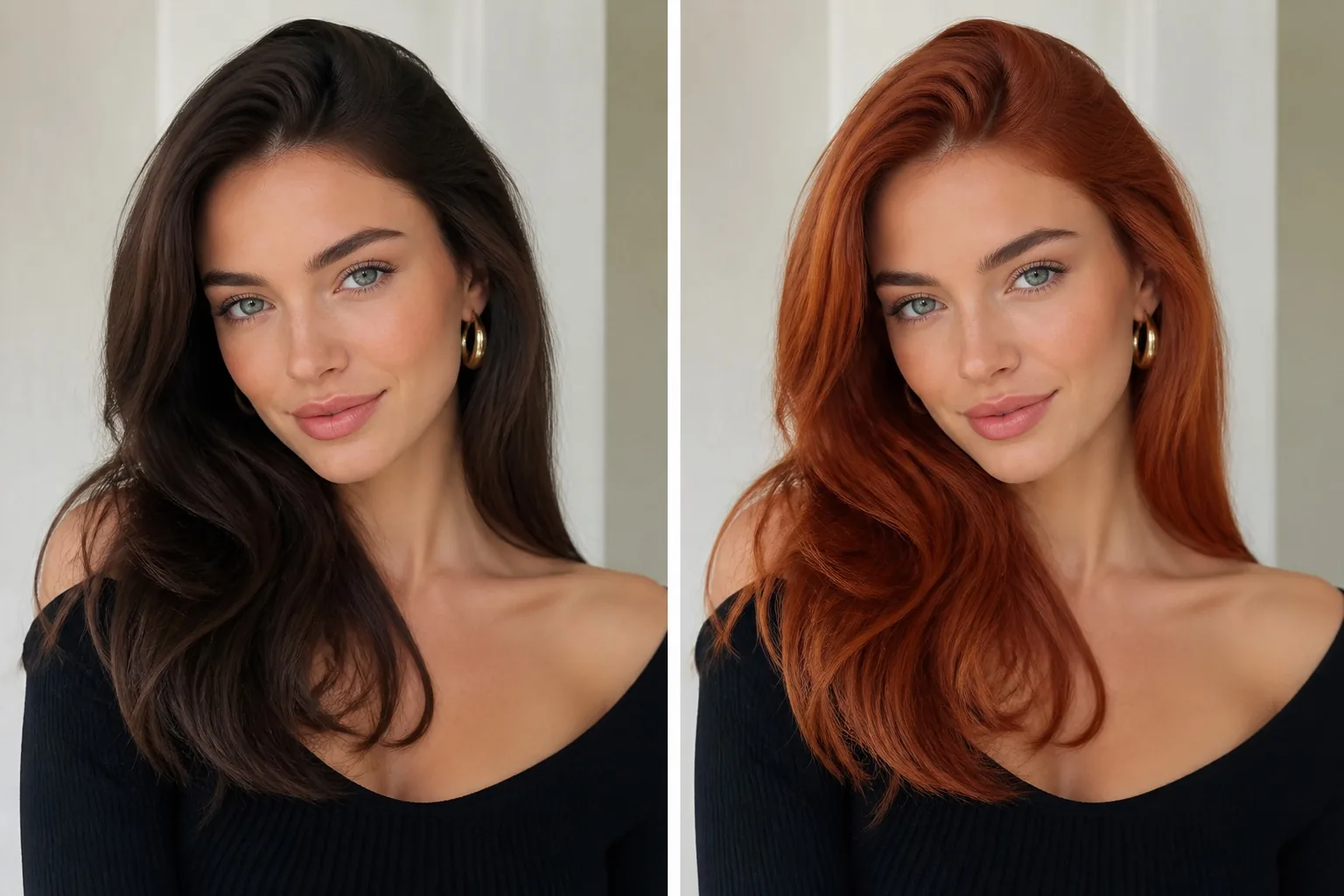
Learning how to change hair color in a photo with AI makes it easier to test a new look before a salon appointment, refresh a portrait, or explore a creative direction. The most believable result is not only about choosing blonde, red, black, or another shade. It also needs to preserve the person's face, existing hairstyle, hair texture, lighting, and background.
ImageChanger's AI hair color changer, also called an AI hair colour changer, gives you a simple way to upload a portrait, choose a direction, and compare the result with the original. Start with one clear request, then adjust the shade or intensity in a new generation if needed.
Start with a clear portrait
Use a photo where the hair is visible, in focus, and separated from the background where possible. Natural or balanced lighting helps the model retain individual strands, shadows, highlights, and the original volume. Avoid photos where the hair is heavily covered, strongly backlit, or reduced to a very small part of the frame.
Keep the original image saved before editing. It is the easiest reference for checking whether the generated version still looks like the same person.
Change hair color with AI in three steps
1. Upload the portrait
Open the AI hair color changer and upload a clear photo. Use a working copy when the original portrait is important to keep unchanged.
2. Name the color and what must stay the same
Choose a preset or write a focused prompt. State the target color first, then make the preservation rules explicit. For example:
Change the hair to a natural copper red with soft tonal variation. Keep the person's face, hairstyle, hair texture, skin tone, clothing, lighting, and background unchanged.
For an ash blonde preview, try:
Change the hair to an ash blonde with subtle cool highlights and natural roots. Keep the original hairstyle, volume, face, skin tone, lighting, and background unchanged.
Try changing hair color with AI free →
3. Review the details before downloading
Look at the hairline, roots, flyaway strands, eyebrows, ears, and places where hair overlaps clothing. Then check whether the highlights and shadows still match the original light direction. If the result changes more than the color, shorten the prompt and repeat the preservation rules.
Can I change hair colour in a picture online?
Yes. An AI hair colour change works best with a clear, front-facing or three-quarter portrait where the hairline and most strands are visible. You can change hair color in a picture to test a subtle salon-ready shade, a dramatic new color, highlights, or an ombre direction without altering the original photo. Keep the prompt focused on color, then explicitly ask the AI to retain the face, haircut, volume, lighting, and background.
For example, this prompt is suitable when you want to change your hair color in a photo without changing the rest of the image:
Change only the hair color to soft chestnut brown with subtle caramel highlights. Keep the person’s face, hairstyle, hair volume, skin tone, clothing, lighting, and background unchanged.
Hair color ideas to test
Natural blonde
Ask for warm honey blonde, beige blonde, or cool ash blonde depending on the look you want. Mention natural roots if you want to avoid a flat, uniform result.
Brunette and black
Deep brunette, espresso brown, and soft black work best when you request natural tonal variation and subtle shine. A completely flat color can make hair look less dimensional than the source.
Copper and red
Copper red, auburn, and strawberry blonde are easier to assess when you state whether the result should feel vivid, muted, warm, or natural. Keep the lighting rule in the prompt so highlights do not become orange or overly saturated.
Creative colors
Pastel pink, electric blue, silver, and purple can work well for mood boards, cosplay concepts, or social content. Describe whether you want a full color change, an ombre effect, highlights, or colored ends.
Tips for a realistic AI hair color change
- Make one change at a time. Do not combine a hair recolor with a new face, hairstyle, or background in the same instruction.
- Preserve the hairstyle and volume explicitly, especially for curls, braids, bangs, or layered cuts.
- Refer to the original lighting, skin tone, and background to keep the edit coherent.
- Compare a few variations instead of assuming the first shade is the best match.
If you also want a new setting after you choose a color, use the AI background replacer as a separate, focused edit. For a broader visual redesign, try AI style transfer.
Preview first, then decide
An AI hair color preview is useful for exploring direction, not for predicting an exact salon result. Upload a clear portrait, state the color and preservation rules, and compare several subtle variations before deciding what feels right.